Instantly webhook guide
When to use this guide: Use this guide when configuring or validating engagement platform integration behavior.
Webhooks are a powerful way to receive near-real time notifications about events happening within your Instantly account.
By properly configuring your webhooks with OutboundSync, you can automate workflows, integrate with your CRM, generate reporting on your campaign attribution, and more.
Use OutboundSync webhooks, not Instantly’s native HubSpot or Salesforce connectors. When activity flows through OutboundSync, leave Instantly’s built-in HubSpot and Salesforce integrations off (or disconnect them). Running both can duplicate or conflict activity on the same contacts. See the Instantly overview for scope and limitations.
What Are Instantly Webhooks?
Section titled “What Are Instantly Webhooks?”A webhook is an HTTP callback that sends data to a specified URL when certain events occur in your Instantly account.
Instead of constantly polling Instantly for updates, webhooks allow you to receive event notifications instantly, enabling seamless integration with your applications.
If an event fails to deliver, Instantly will retry a maximum of three (3) times in 30 seconds to deliver that webhook payload.
Setting Up Webhooks in Instantly
Section titled “Setting Up Webhooks in Instantly”Instantly allows you to set up multiple webhook URLs for each given Instantly workspace.
- Go to the Settings section of your Instantly workspace. Go to the Integrations menu, then click Webhooks.
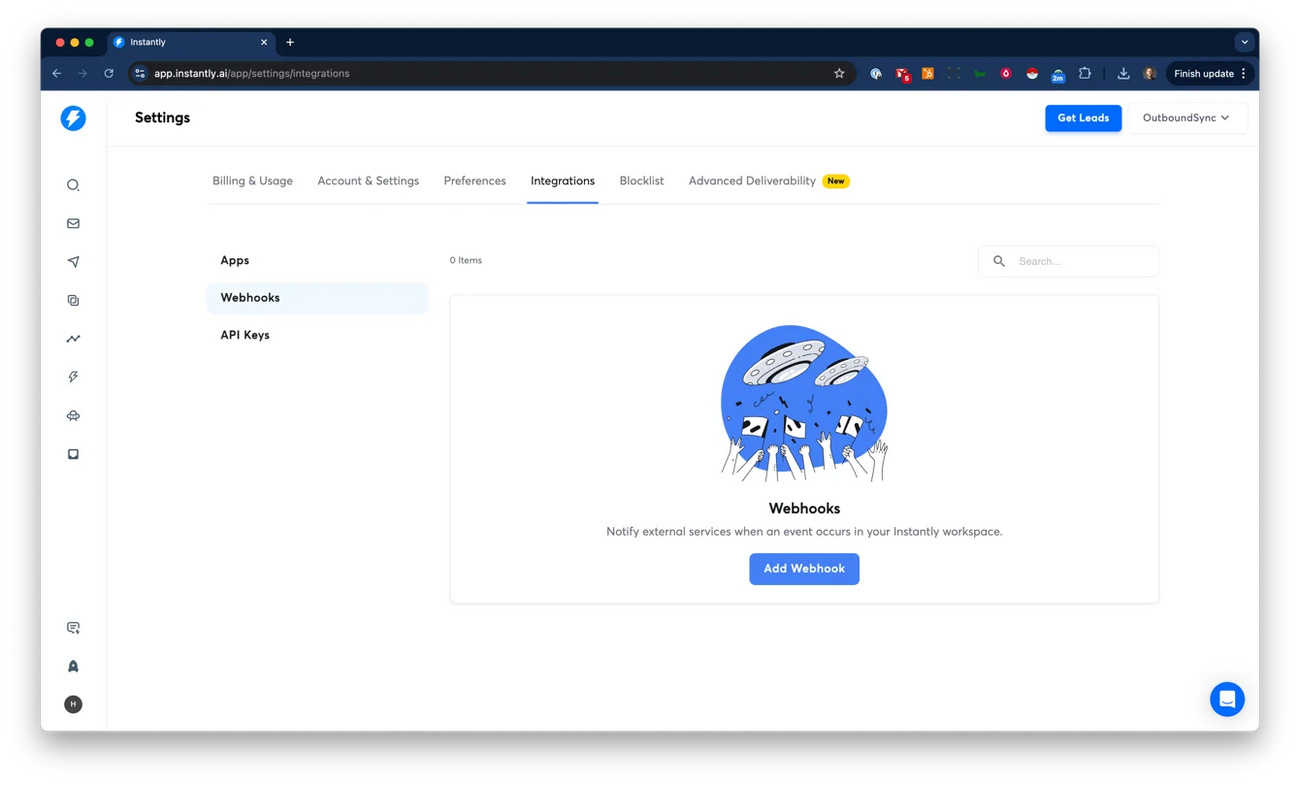
- Click the Add Webhook button to load the following screen:
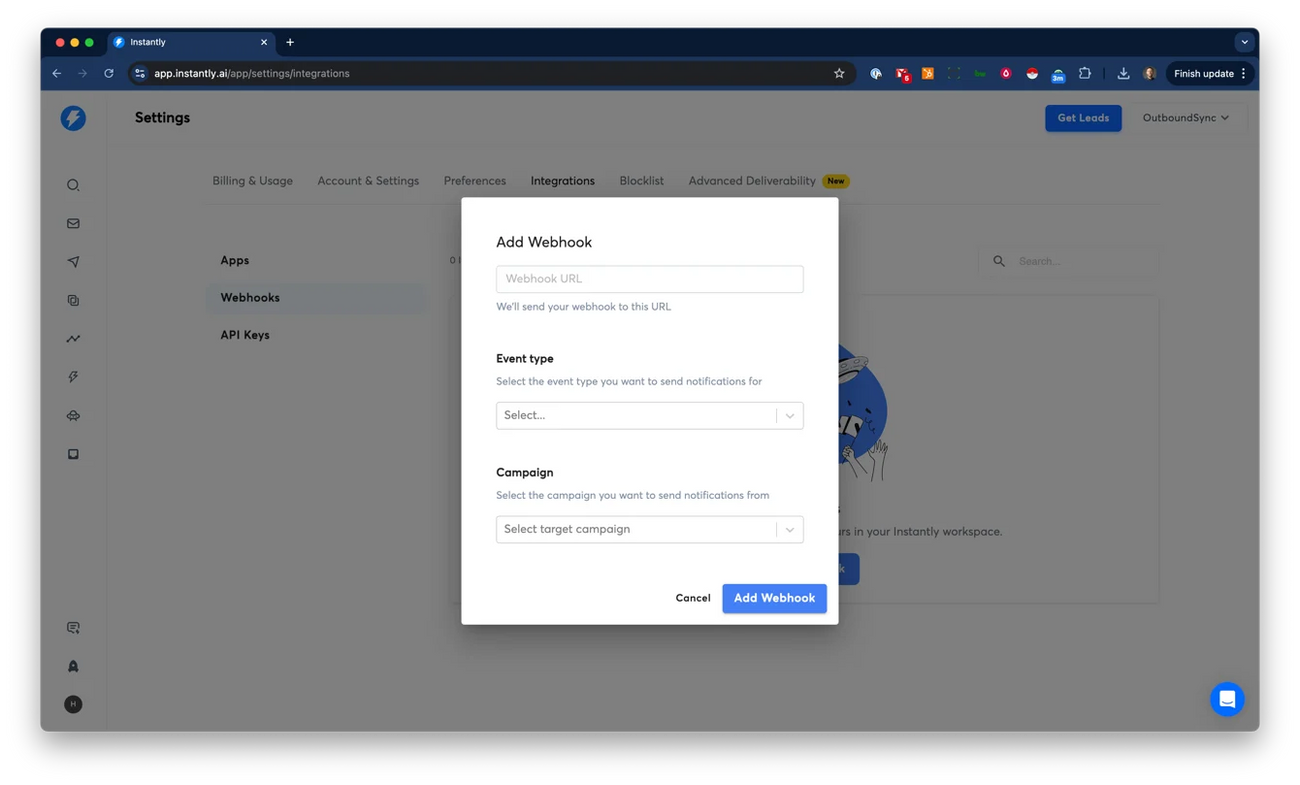
- Enter a name and a webhook URL from OutboundSync. In Instantly, choose All events or specific event types (Instantly Webhooks).
Not sure which events to pick? Read How do I decide which data to sync? first — Instantly’s All events vs specific types (and non-responder completion) are covered there and in the Best Practices below.
When you create or edit an Instantly Source in OutboundSync, the Source diagram lists the Instantly events OutboundSync syncs to your CRM. That diagram is the source of truth. Instantly’s help center may document additional webhook events (for example Campaign completed or Email account error). Those are not supported — OutboundSync may receive the payload and ignore it (no CRM write). Unsupported Instantly events are not billed; OutboundSync bills by sent messages only.
OutboundSync supports these Instantly events (as shown on the Instantly Source diagram). Instantly’s webhook UI may word the labels slightly differently when you pick specific event types:
-
Email opened
-
Email sent
-
Reply received
-
Email link clicked
-
Email bounced
-
Lead unsubscribed
-
Lead is marked as interested
-
Lead status changed to Meeting booked
-
Lead status changed to Meeting complete/Not closed
-
Lead status changed to Close
-
Lead status changed to Out of office
-
Lead status changed to Wrong person
-
Lead is marked as not interested
-
Lead is marked as neutral
-
Other custom labels you created for lead status
Campaign completed without reply: Instantly can send campaign_completed_for_lead_without_reply when a lead finishes all campaign steps with no reply. Instantly only triggers that event when the webhook is set to All events — it is not a separate Instantly checkbox, and it is not Instantly’s standalone Campaign completed event (which OutboundSync does not sync). All events also includes Email sent, so you cannot keep Email sent off on the same webhook if you need this non-responder payload. OutboundSync syncs the without-reply payload as LEAD_CATEGORY_UPDATED (shown with other lead-category / custom-label traffic on the Source diagram). It uses the normal CRM-specific queue delay rather than the priority lane — see How OutboundSync queues and prioritizes webhook payloads and Diagnosing missing Instantly replies.
- Select whether you want the webhook payloads to be sent to OutboundSync for All Campaigns, or for an individual campaign. (All events = which payload types Instantly sends. All Campaigns = which campaigns this webhook covers.)
We encourage you to consider sending all webhook payloads to OutboundSync to ensure no data loss and maximum attribution coverage. However you can manually select the OutboundSync webhook payload for each campaign.
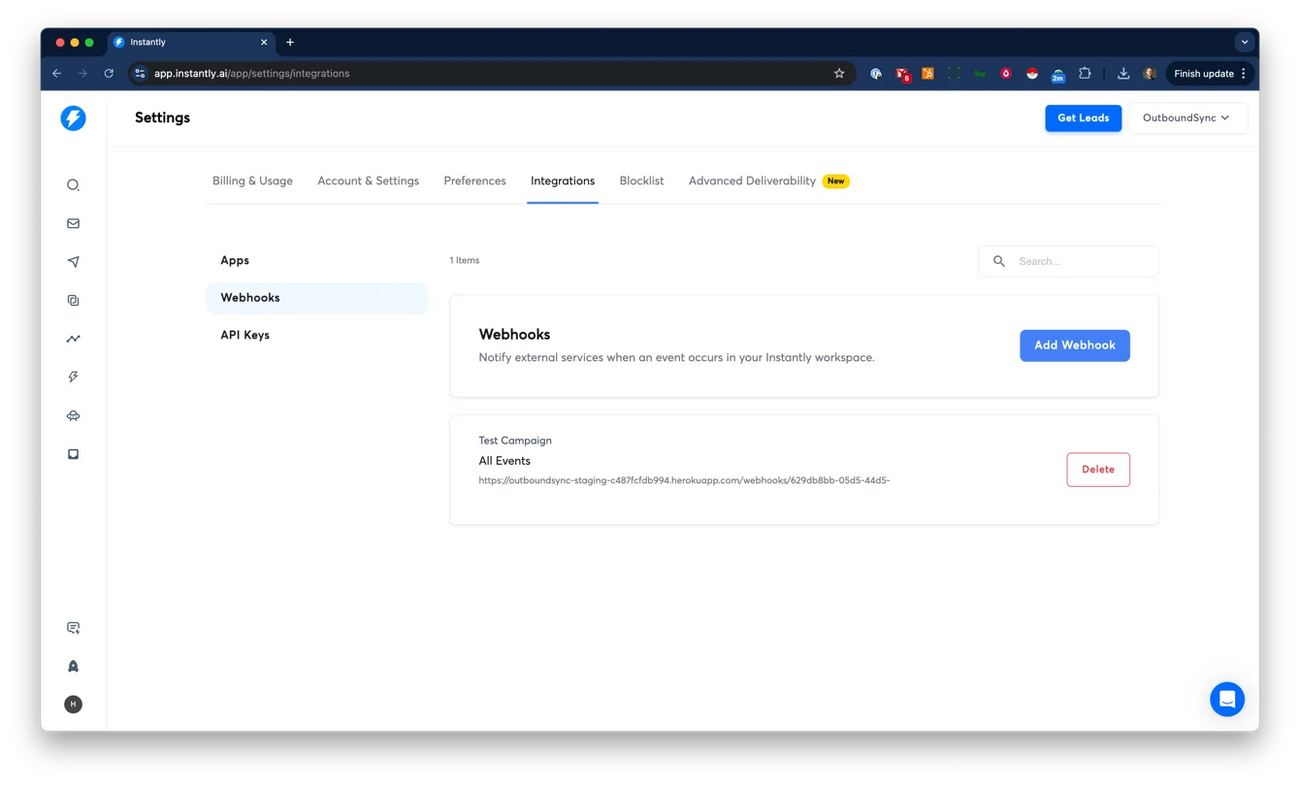
- Click the Add webhook button, and automatically be returned to the previous webhooks screen.
- Confirm that you see your newly created webhook and which events it is applied to, as shown below:
Limitations and Considerations
Section titled “Limitations and Considerations”- Internal-only Webhook Logs: Instantly maintains logs of its webhook performance and their support team can use these to help you troubleshoot issues. Additionally, OutboundSync logs are available and we can help you review them along with our internal server diagnostic logs.
- Error Handling: In case of failure, Instantly does have a policy of three (3) retry attempts in 30 seconds for its webhook payloads. OutboundSync is always developing new methods to ensure we have the latest data available from Instantly.
- Security: Implement proper security measures on your Instantly account that will be sending webhook payloads to OutboundSync.
Best Practices
Section titled “Best Practices”- Test Your Webhooks: Before deploying to production, test your webhooks by first reviewing Instantly’s webhook documentation and using OutboundSync’s sync test function .
- Use Unique URLs: If setting up multiple webhooks, remember to use unique URLs to distinguish between them.
- Monitor Performance: Keep an eye on your records in your CRM and history in OutboundSync. If anything seems off, contact us so we can help you diagnose the issue.
- Match Instantly’s catalog to OutboundSync support. Instantly may document webhook events that OutboundSync does not sync (for example Campaign completed). The Instantly Source diagram in OutboundSync is the list of events that write to your CRM. Unsupported Instantly payloads are ignored and are not billed (Pricing).
- Pick the right filter for your goal. Strategy first: How do I decide which data to sync?. These are separate Instantly / OutboundSync controls:
- Limit which events Instantly sends: choose All events or specific event types in Instantly. Specific events can omit Email sent for lower volume. Use All events when you need Instantly’s
campaign_completed_for_lead_without_replypayload — that path also sends Email sent and counts toward OutboundSync send volume. - Hold activity until a label qualifies: use category-based filters. When an allowlisted label arrives, OutboundSync releases the held history for that lead and campaign — including earlier sends — so this is not the same as “open/click only.”
- Avoid domain-named Salesforce Account creates: Instantly webhooks omit company name. Pre-load Contacts/Leads (and Accounts with Website /
accountLookupFieldscovering the email domain) before campaigns, or set Salesforce to Update Only. Neither event toggles nor category filters supply a company name.
- Limit which events Instantly sends: choose All events or specific event types in Instantly. Specific events can omit Email sent for lower volume. Use All events when you need Instantly’s
Conclusion
Section titled “Conclusion”Webhooks are an integral part of automating your workflows with Instantly and your CRM. By understanding how they work and setting them up correctly, you can run a fully integrated outbound operation that integrates with your automations, workflows, and sales processes.
Next step
Section titled “Next step”Related guides
Section titled “Related guides”- Instantly overview — scope, event selection, category filters, and Salesforce notes
- Diagnosing missing Instantly replies
- How OutboundSync queues and prioritizes webhook payloads — campaign completed without reply queue behavior